Article
Inheriting InDesign Manuals: A Tech Writer's Survival Guide

Summary:
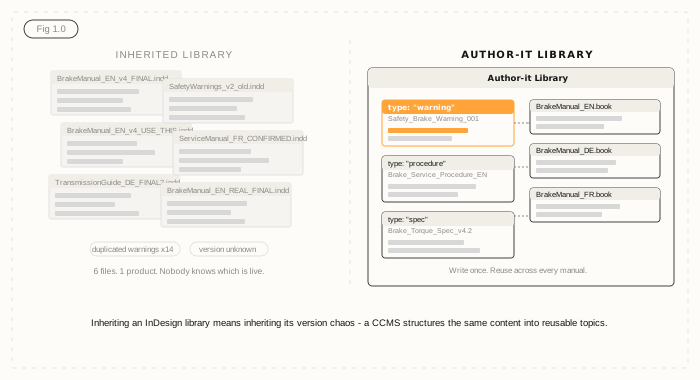
Inheriting a library of InDesign manuals is one of the most common - and most disorienting - situations a new technical writer faces. You'll find files named things like BrakeManual_EN_v4_FINAL_USE_THIS_ONE.indd and no clear record of what's actually live. This guide walks you through five practical steps: audit what you've got, find the version problem, identify duplication, resist the urge to just tidy up the files, and build the case for a better approach. Teams in manufacturing who've gone through this journey typically find that the real cost isn't the InDesign files - it's the update overhead locked inside them.
Step 1 - Don't panic, do an audit
Before you touch a single file, find out what you're dealing with. Open a spreadsheet and start cataloguing. You want to know: how many files exist, which products they cover, which languages are present, when each file was last modified, and - if you can work it out - which version of the product each file describes.
This isn't glamorous work. But it's the only way to stop yourself from accidentally editing the wrong file, publishing an outdated manual, or spending a week updating something that's been superseded.
A simple inventory with five columns is enough to start: filename, product, language, last modified date, and a notes column for anything that looks suspicious. You'll add to it as you go.
One thing you'll almost certainly discover: there are more files than you expected. A healthy InDesign library for a mid-sized manufacturer tends to be at least 50-100 manuals. Libraries that haven't been actively managed can run to 200, 300, or more - many of which are partial copies, language variants, or just old drafts no one deleted.
Step 2 - Find the version problem
In any InDesign library older than two years, there are almost certainly conflicting versions. Multiple files for the same product, same language, different modification dates. File names that include words like FINAL, USE_THIS, CONFIRMED, or the always-reassuring REAL_FINAL.
This is not your fault. It's the natural result of managing documentation as individual files - every writer who touched the library left their own trail of copies.
Your job now is to establish what's actually live. Cross-reference the most recently modified files with the relevant product team or engineering lead. Ask them directly: which version of this manual is currently shipping with the product? Their answer may not match what's on the file server.
Document everything you find in your inventory spreadsheet. Mark clearly which files are confirmed live, which are suspected duplicates, and which are unknown. The unknown pile is usually bigger than you'd like.
Step 3 - Identify the duplication
Once you've got a working inventory, look for the same content appearing in multiple files. Safety warnings are the most common culprit - a standard caution about electrical hazards or fluid handling that's been copy-pasted into 40 different manuals, each copy slightly different from the last. Specifications are another: torque values, material grades, dimensions that appear in service manuals, installation guides, and parts catalogues simultaneously.
Every duplicate is a future update you'll have to make twice. Or twelve times. Or forty.
This is where the real cost of an unmanaged InDesign library lives - not in the files themselves, but in the ongoing overhead of keeping them consistent. When a safety procedure changes, someone has to find every place it appears and update each one manually. That process is slow, error-prone, and scales directly with how much duplication exists in the library.
Note the duplicates in your inventory. Estimate roughly how many instances of repeated content you're finding. You'll need this number later.
If you're working in manufacturing and your library supports products that go to regulated markets, the duplication problem carries additional weight - an inconsistent safety warning isn't just a content quality issue, it's a compliance risk.
Step 4 - Resist the urge to just fix it in InDesign
Here's the instinct most new technical writers have at this point: open InDesign, tidy up the files, establish a naming convention, maybe create a master template, and carry on.
Resist it.
Not because the tidying wouldn't help in the short term - it would. But if you've inherited 200+ manuals with significant duplication, you're not solving the problem. You're cleaning up the current mess while leaving the conditions that created it completely intact. The next update cycle, you'll be doing it again. And the one after that.
The fundamental issue is that InDesign treats every document as a self-contained file. There's no mechanism for shared content - no way to write a safety warning once and have it automatically reflect across every manual that uses it. Every update is a manual find-and-replace operation across dozens or hundreds of separate files.
This is a structural problem, not a housekeeping problem. Tidying the files is the equivalent of straightening the deck chairs. It feels productive. It doesn't change anything that matters.
To understand the full picture of what a Component Content Management System offers instead, the what is a CCMS guide is worth reading before you build your case for change - it explains how structured authoring eliminates duplication at the source.
Step 5 - Build the case for change
The audit you've done isn't just triage. It's the raw material for a business case.
Take what you've found and quantify it. How many files do you have? How many appear to be duplicates or outdated versions? How many instances of repeated content did you find across different manuals? How long does it currently take to propagate a single product update across the affected files?
Even rough estimates are useful here. If you have 180 manuals, 40% of which contain the same safety warning section, and each manual update takes a writer three hours to complete - that's a number your manager can work with. Multiply it by how often product updates happen, and you start to see the real annual overhead.
The baby boomer exit from manufacturing is making this problem more acute. A significant portion of the technical writers who built these InDesign libraries are retiring - taking with them the institutional knowledge of which files are authoritative, which templates to use, and where the bodies are buried. New writers inheriting those libraries are starting from scratch, often without documentation of the documentation.
A structured content approach - where content lives as reusable components in a single library rather than embedded in individual files - eliminates duplication at the source. One safety warning, maintained once, published to every manual that uses it automatically. When it changes, it changes everywhere, simultaneously.
Author-it is where teams land after going through exactly this journey. The migration from InDesign is well-understood: content audit, structured migration with the Author-it services team, then ongoing single-source authoring. Most organisations complete the migration within 90 days. The content audit you've already started is the first step.
To see what the update overhead in your current library is actually costing you, try the Author-it ROI calculator - it's built specifically for teams moving from document-based authoring to a CCMS.

InDesign manuals FAQ
Q: What should a technical writer do when they inherit a library of InDesign manuals?
A: Start with an audit before touching anything. Build a simple inventory spreadsheet covering every file: product, language, last modified date, and whether it's confirmed live. Cross-reference with product teams to establish which version of each manual is actually current. Only once you understand what you have should you start making any changes.
Q: How do I manage a large set of InDesign technical documents as a new writer?
A: Begin with triage, not editing. Identify which files are live, which are duplicates, and which are outdated. Build an inventory first, then work with product owners to confirm what's actually shipping. The biggest risk when you inherit a large InDesign library is inadvertently editing the wrong file or working from an outdated version.
Q: Why do inherited InDesign libraries always seem to have version conflicts?
A: Because InDesign treats every document as a separate file. There's no built-in mechanism for version control or shared content - writers manage versions manually through file naming conventions, which deteriorates over time. When multiple people have worked on a library over several years, you end up with files called FINAL, USE_THIS, FINAL_v2, and REAL_FINAL for the same document.
Q: What is content duplication in InDesign manuals and why does it matter?
A: Content duplication means the same text - a safety warning, a specification, a standard procedure - appearing in multiple separate InDesign files. It matters because every duplicate is a separate update task. When a product or regulation changes, you must find and update every copy manually. In libraries with 100+ files, this overhead can consume weeks of writing time per year.
Q: Is it worth trying to fix an inherited InDesign library, or should I migrate to a CCMS?
A: It depends on scale. A library of 10-20 manuals with low duplication can often be managed effectively in InDesign with good naming conventions and templates. A library of 100+ manuals with significant shared content - safety warnings, specs, standard procedures appearing across dozens of files - is a strong candidate for migration to a Component Content Management System (CCMS). The ongoing update overhead of a large, duplicated InDesign library typically exceeds the cost of migration within 12-18 months.
Q: How long does it take to migrate from InDesign to a CCMS?
A: For most organisations, a structured migration from InDesign to a CCMS takes 60-90 days with a services-led approach. The process includes content audit, information architecture design, content migration, and team training. The content audit you complete when inheriting the library is typically the most time-consuming part - and you're doing it anyway.
Q: What is single-source publishing and how does it solve the InDesign version problem?
A: Single-source publishing means maintaining content once - in a central library of reusable components - and publishing it to multiple outputs automatically. In a CCMS like Author-it, a safety warning is written once and reused across every manual that needs it. When it changes, it updates everywhere simultaneously. This eliminates the version conflicts and manual propagation overhead that are inherent in file-based InDesign workflows.
Q: Why are so many manufacturing documentation teams inheriting InDesign libraries right now?
A: A significant wave of experienced technical writers and documentation managers from the baby boomer generation are retiring from manufacturing. They built and maintained large InDesign libraries over careers spanning 20-30 years - often carrying knowledge of which files are authoritative, which templates to use, and which workarounds exist entirely in their heads. Their successors are inheriting those libraries without that institutional knowledge, which makes the version and duplication problems much harder to navigate.
Published on:
Author:
May 1, 2026
Jamie Simmonds
Documentation Manager
Related Resources

Article
Content lock-in: the exit tax nobody budgets for
The cost of leaving a content platform rarely makes the business case - until you try to switch. Here is the exit tax, and how open output removes it.
Article
Docs-as-code vs CCMS: the limits at scale
Markdown is prose with formatting. Structured content carries what reuse and reliable AI retrieval need.

Guide
FrameMaker migration to a modern CCMS
Migration anxiety keeps FrameMaker teams put. A phased, supported move drops the risk sharply.